

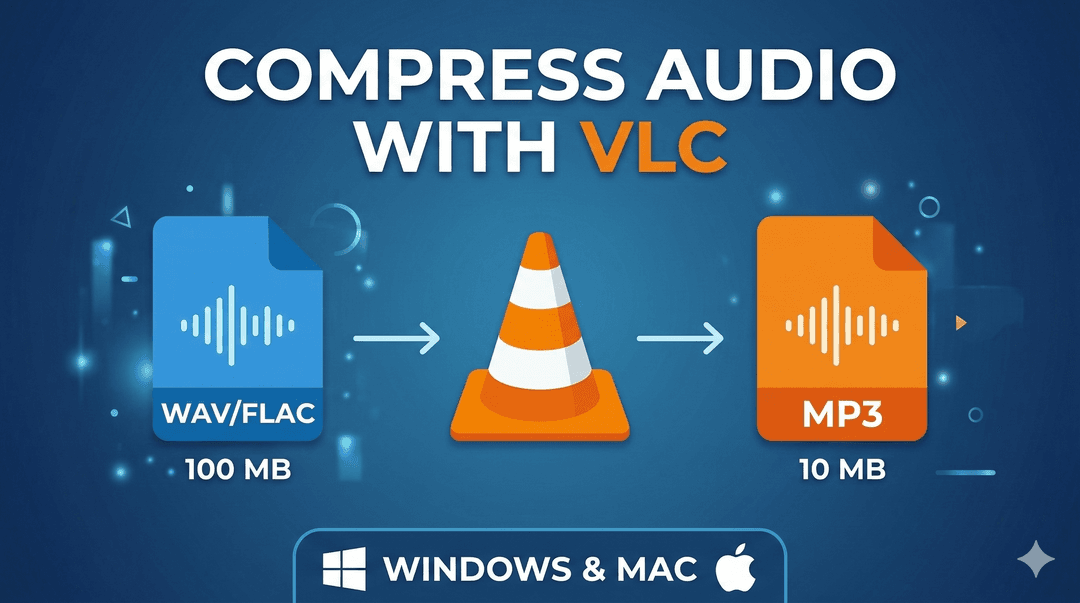
How to Compress Large Audio Files to MP3 Using VLC: Complete Guide for Windows & Mac
David Chen
If your audio file is very large, uploads can be slow, fragile, or fail after a refresh. Converting the file to MP3 first is the fastest way to make uploads more stable.
This guide shows you how to compress large audio files with VLC Media Player on both Windows and Mac.
Why Convert Large Audio Files to MP3 First?
For long recordings like meetings, interviews, and lectures, source files are often WAV or high-bitrate M4A. These can become very large quickly.
Converting to MP3 before upload gives you:
- Smaller files: Usually 5x-20x smaller than WAV
- Faster uploads: Less waiting and fewer timeout risks
- Better reliability: Reduced chance of interruption during upload
- Enough quality for speech transcription: MP3 at reasonable bitrate is usually more than enough
Quick Size Estimate
For speech-heavy recordings:
- 64 kbps mono MP3: about 28 MB per hour
- 96 kbps mono MP3: about 42 MB per hour
- 128 kbps stereo MP3: about 56 MB per hour
Example: a 2.5-hour recording at 96 kbps is roughly 105 MB.
What You'll Need
- VLC Media Player (videolan.org)
- Your original audio file (WAV, M4A, FLAC, etc.)
- Enough free disk space for both original and converted files
Recommended MP3 Settings for Transcription
If you want the easiest path, just select Audio - MP3 and keep defaults.
- Meetings / lectures / calls: 64-96 kbps, mono
- Interviews / podcasts: 96-128 kbps, mono or stereo
- Sample rate: 44.1 kHz is a safe default
If you are unsure, keep default first. Then use 96 kbps mono only when you need to reduce size further.
Step-by-Step Guide for Windows
Step 1: Install VLC
Download and install VLC from videolan.org.
Step 2: Open the Convert Tool
- Open VLC Media Player
- Click Media -> Convert / Save (or press Ctrl + R)
- Click Add and choose your large audio file
- Click Convert / Save
Step 3: Choose MP3 Output Settings
- Under Profile, choose Audio - MP3
- You can keep default settings and continue
- Optional (advanced): click the wrench icon only if you want to change bitrate/channels
Step 4: Export the File
- Click Browse to pick output location and filename
- Make sure the file ends with
.mp3 - Click Start
- Wait for conversion to complete
Step-by-Step Guide for Mac
Step 1: Install VLC
Download and install VLC from videolan.org.
Step 2: Open Convert / Stream
- Open VLC Media Player
- Click File -> Convert / Stream (or press Option + Command + S)
- Click Open media and choose your large audio file
Step 3: Configure MP3 Compression
- In Choose Profile, select an Audio - MP3 profile
- Keep default settings
- Optional (advanced): click Customize only if you want to lower bitrate for smaller files
- Choose destination file and ensure
.mp3extension
Step 4: Start Conversion
- Click Save as File
- Click Go or Save to begin
- Wait until conversion is finished
How to Verify the Result
Before upload, do a quick check:
- Open the MP3 and listen to the first 30-60 seconds
- Check file size is significantly smaller
- Keep the original source file as backup
Troubleshooting
- File still too large: lower bitrate (for example from 128 to 96 or 64 kbps)
- Voice sounds distorted: increase bitrate (for example from 64 to 96 kbps)
- No audio in output: re-run conversion and verify audio codec is enabled
- Conversion fails: check free disk space and write permissions
If codec options feel confusing, skip them and use defaults first. In most cases, default MP3 output is enough for transcription.
Conclusion
Compressing large audio files to MP3 with VLC is one of the most practical ways to avoid upload issues. The process is free, works on both Windows and Mac, and takes only a few minutes.
For long recordings, this small preprocessing step can save significant upload time and make your transcription workflow much more reliable.