Search your entire library
Full-text search across a single transcription or an entire project — every mention of a topic surfaced in one answer.


UniScribe + OpenAI
Bring your UniScribe transcription library into OpenAI's tools through the Model Context Protocol (MCP). Connect ChatGPT with a one-time OAuth sign-in — no API key — or point Codex CLI at the same server from your terminal.
Seven MCP tools let an AI assistant browse, read, and search everything you've transcribed with UniScribe — and submit new recordings for transcription.
Full-text search across a single transcription or an entire project — every mention of a topic surfaced in one answer.
Results carry the filename, speaker, timestamp, and original excerpt, plus a deep link straight to that position in the transcript.
Connect the ChatGPT apps with one sign-in, or point Codex CLI at the same server and ask about your meetings without leaving the command line.
The assistant can read your library and submit new audio for transcription — it can't edit or delete anything in your account, and read queries don't consume minutes.
Ask a question, get the answer with verbatim quotes and clickable timestamps that jump back to the exact moment in your transcript.
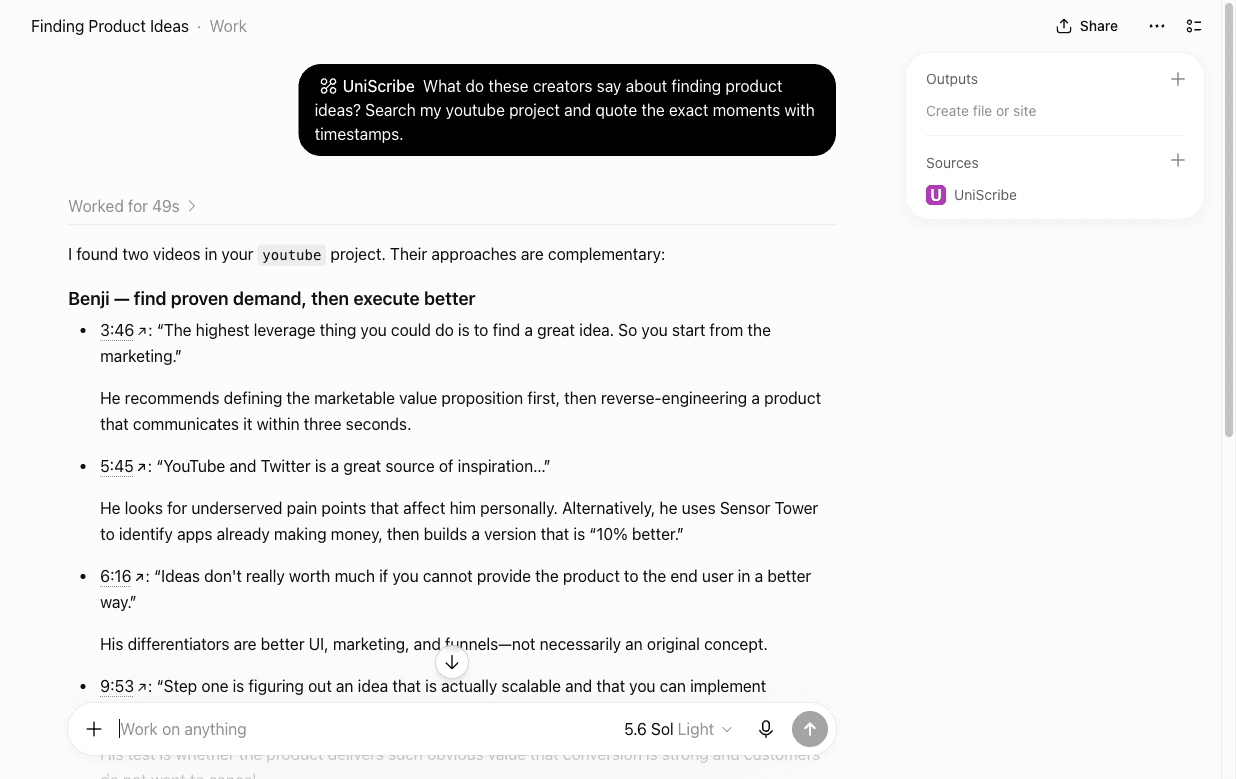
ChatGPT and Codex CLI both connect with OAuth — one URL, one sign-in, no API key anywhere.
Add UniScribe once in the latest ChatGPT desktop app; the connection then works in your conversations.
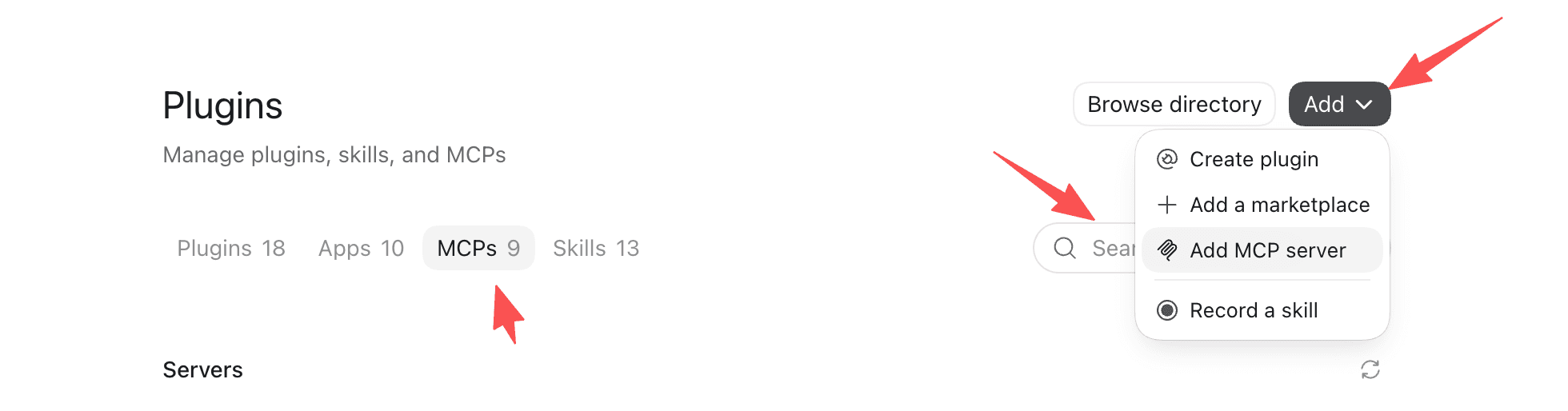
Open Settings → Plugins, switch to the MCPs tab, and choose Add → “Add MCP server”.
Name it UniScribe, set the type to Streamable HTTP, paste the server URL, and click Save:
https://mcp.uniscribe.co/mcp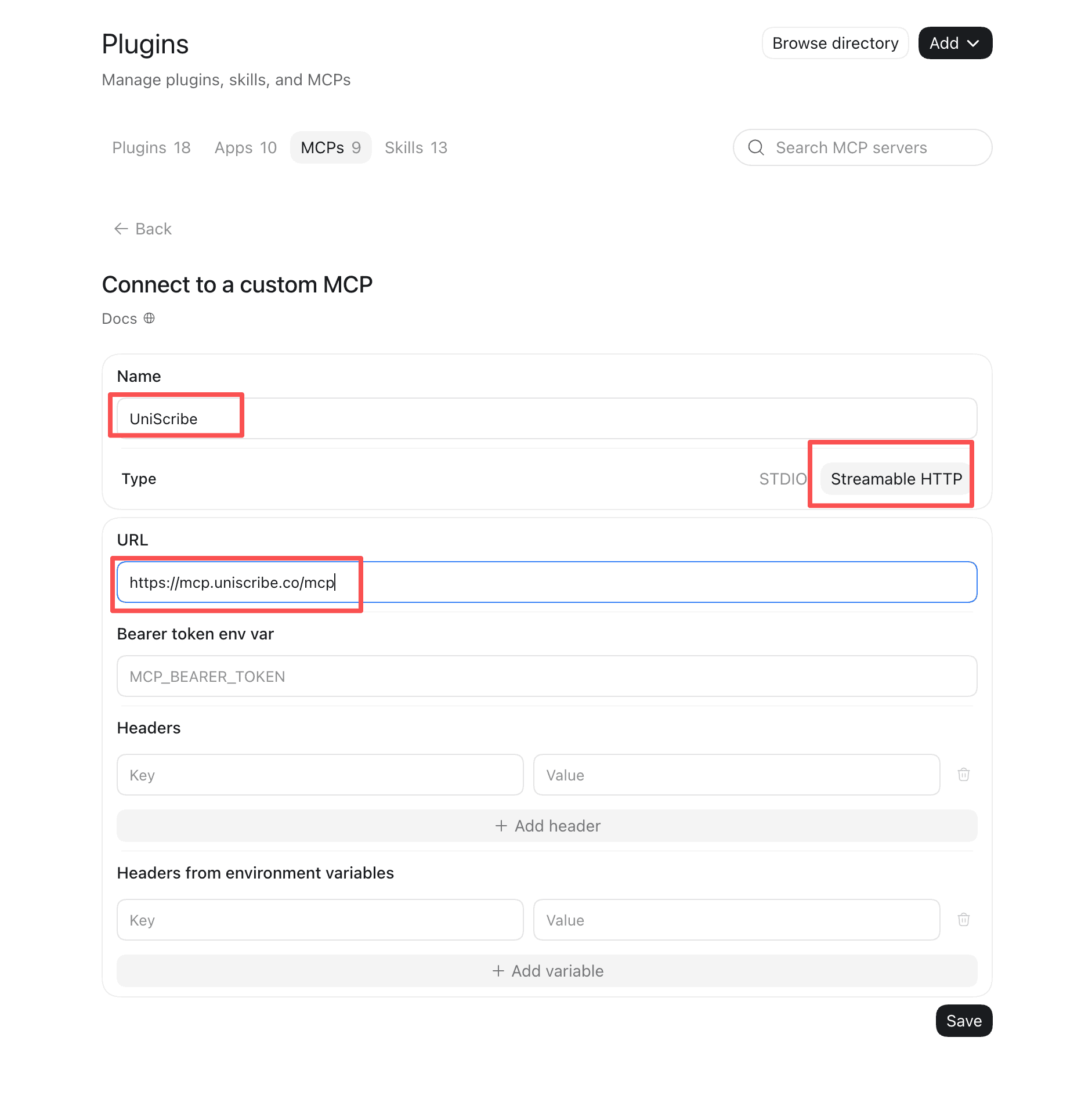
Complete the sign-in: you'll be taken to UniScribe to log in and approve access, then returned to ChatGPT.
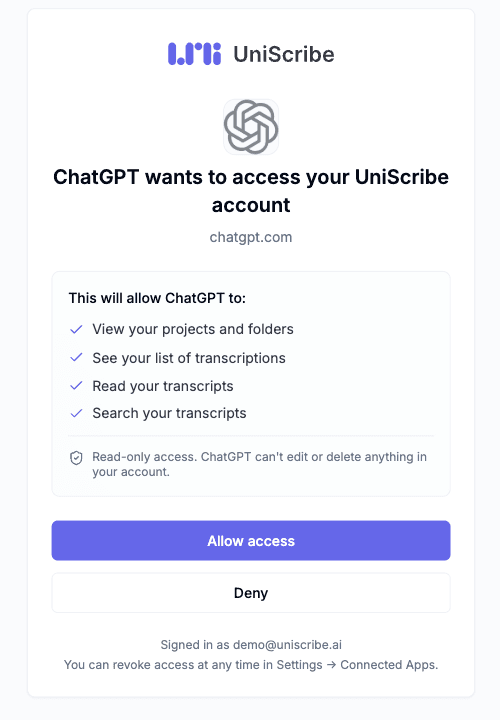
Ask something like “list my recent UniScribe transcriptions” to confirm it works.
On chatgpt.com the same server can be added as a custom connector from the connector settings (enable developer mode on individual plans if the option is hidden). You can disconnect at any time from UniScribe's Settings → Connected Apps.
Codex CLI connects with the same OAuth sign-in as ChatGPT — no API key to create or paste.
Add the server in your terminal:
codex mcp add uniscribe --url https://mcp.uniscribe.co/mcpSign in — your browser opens the UniScribe consent screen, and the connection is live once you approve:
codex mcp login uniscribeAsk something like “list my recent UniScribe transcriptions” to confirm the connection.
Prefer Claude?
The same MCP server connects to Claude Code with a single command and to Claude Desktop via a small config change — see the Claude integration guide below.
Once connected, talk to your transcript library the way you'd ask a colleague who was in every meeting.
“Summarize the key points from my recent interviews.”
“Search my Customer Research project for every mention of pricing objections.”
“Which action items came out of this week's team meetings?”
“Find where we discussed the Q3 roadmap and quote the exact wording with timestamps.”
The integration gives an assistant the minimum access needed to answer your questions — and nothing more.
The current tools expose only read operations — nothing done through them can change, delete, or add data in your UniScribe account.
UniScribe doesn't store the content of the questions you ask through MCP. Your conversations stay between you and your assistant.
Access is tied to an OAuth connection you control. Disconnect it in Settings → Connected Apps at any time and the integration is cut off immediately.
Learn more about how UniScribe handles your data on the Security & Privacy page and in our Privacy Policy.
Connect Claude Code with a single command, or Claude Desktop with a small config change.
Claude setup guideEndpoint details, the full tool reference, and configuration for every supported MCP client.
MCP server guideBuild your own workflows with the UniScribe API: upload files, fetch transcripts, and receive webhooks.
API documentationAdd the connector, sign in once, and ask ChatGPT or Codex about every meeting, interview, and lecture you've transcribed.